





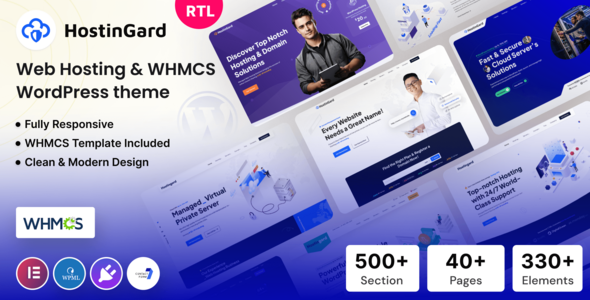
Hostingard – is a versatile hosting WordPress theme seamlessly integrated with a WHMCS Template. This powerful combination offers a professional and user-friendly platform tailored for web hosting businesses. Effortlessly manage your hosting plans, domains, and client accounts with WHMCS’s robust billing and automation features. The theme provides a modern, responsive design ensuring your website looks great on any device. Customizable layouts, advanced theme options, and smooth WHMCS integration make it easy to create a stunning, functional website. Enhance your business operations with our all-in-one solution, perfect for delivering exceptional hosting services and a superior user experience to your clients.
Hostingard WordPress Theme Features
Ajax Domain Search
Added Elementor Templates Library
Built with elementor page builder
Codestar Framework
One Click Demo Import
RTL Supported
MailChimp newsletter
Contact Form 7 Support
Cross-Browser Compatibility: FireFox, Safari, Chrome
Flexible Colors & Typography
Fast Performance
Fully Responsive Layout
Powerful Theme Options
Right, Left and Dual sidebar options
Custom 404 page selection option
Seo Optimized
Google Fonts
Well Documentation
Based on Bootstrap
Based on jQuery
Unlimited color
Free Lifetime Updates
Professional Quick & Faster Support
And Much More…
Join the conversation
You can post now and register later. If you have an account, sign in now to post with your account.